ASL Tunnel help
- 1. What ASL Tunnel does
- 2. Before you start
- 3. Install from Microsoft Store
- 4. First launch and the splash screen
- 5. Choose your language
- 6. Arabic and readable text
- 7. Sign in safely
- 8. Create a customer account
- 9. Verify your email
- 10. Forgotten passwords
- 11. Create your workspace
- 12. Switch workspaces
- 13. Owners, operators and viewers
- 14. Create your first tunnel
- 15. Labels and route names
- 16. Pair from Android or the website
- 17. Pairing codes expire
- 18. Choose the local service
- 19. Local HTTPS certificates
- 20. Connect
- 21. Disconnect and close
- 22. Manage several routes
- 23. Use the private viewer link
- 24. What becomes reachable
- 25. WebSocket applications
- 26. Refresh the tunnel list
- 27. Enable or disable a tunnel
- 28. Replace a device pairing
- 29. Revoke access
- 30. Route expiry and trial limits
- 31. Connection status messages
- 32. Internet interruptions and sleep
- 33. Pairing failed or could not be saved
- 34. Sign-in errors
- 35. Requests whose result is uncertain
- 36. The tunnel connects but the page fails
- 37. App purchases and service billing
- 38. Android alerts and billing views
- 39. Data and credentials
- 40. Safe troubleshooting evidence
- 41. Reduce background motion
- 42. Keyboard and accessibility
- 43. Search this help
- 44. Updates
- 45. Uninstall and remove access
- 46. Delete a Tunnel account
- 47. FAQ and glossary
- 48. What's new and support
- 49. SSH: understand the two computers
- 50. SSH: checklist before setup
- 51. Windows destination: prepare OpenSSH Server
- 52. Windows destination: pair and publish SSH
- 53. Windows: start SSH when you sign in
- 54. Windows connecting computer: save access
- 55. OpenSSH configuration and first connection
- 56. Verify the destination host key
- 57. The four SSH credentials and where they belong
- 58. SSH pairing errors and expired codes
- 59. SSH error 401: route key rejected
- 60. SSH error 503: destination unavailable
- 61. SSH session limits and timeout behavior
- 62. SSH permission denied or wrong username
- 63. SSH configuration and execution-alias errors
- 64. SFTP, SCP and editor connections
- 65. Stop, disable, rotate and revoke SSH access
- 66. SSH privacy, logs and safe evidence
- 67. Linux: installation and prerequisites
- 68. Linux destination: configure and verify SSH
- 69. Linux destination: pair, save and run
- 70. Linux: install a user service
- 71. Linux: logout, startup and unattended access
- 72. Linux connecting computer: route key and config
- 73. Linux: private file locations and permissions
- 74. Linux: stop and remove a user service
- 75. Using Windows and Linux together
- 76. Test from outside your local network
- 77. Update and recover SSH without losing LAN access
- 78. Apps, hosted service and usage
- 79. SSH command reference and safe placeholders
- 80. Direct connections and relay fallback
- 81. Open an application from another device
- 82. Direct connection limits, privacy and bandwidth
- 83. Shared drives: what access means
- 84. Connect an approved shared drive
- 85. Sharing invitations and unlock codes
- 86. Open files in File Explorer
- 87. What the permission check verifies
- 88. Multiple computers and credential conflicts
- 89. Disconnect, forget or revoke access
- 90. Interrupted connections and recovery
- 91. Shared-drive bandwidth and direct connectivity
- 92. Remote Android debugging: what it provides
- 93. Prepare the Android phone
- 94. Understand the two pairing steps
- 95. Connect from the Windows app
- 96. Use remote debugging with rBroker
- 97. Stop a debugging session
- 98. Wi-Fi changes, sleep and expired ports
- 99. When direct debugging cannot connect
- 100. Debugging privacy and troubleshooting details
- 101. Publish a Windows folder without manual setup
- 102. Stop publication and recover interrupted setup
- 103. Small permission-verification files in a shared folder
- 104. Pair with your phone using a QR code
- 105. Your public IP address
1. What ASL Tunnel does
ASL Tunnel connects selected applications and approved devices. The Windows app includes its forwarding engine; the Linux agent runs the selected connection too. ASL Tunnel Customer on Android manages the workspace and can publish an explicitly approved, temporary Android debugging session. Web routes carry the chosen HTTP/HTTPS service and WebSockets. Private SSH routes carry an encrypted SSH stream. Shared drives use separate approvals, verified file permissions and direct-only transport. This is not a whole-device VPN or remote desktop. Creating a route or approval does not mean a device is connected. Read the relevant connection status and complete its access check.
2. Before you start
You need a supported computer, internet access and an ASL account with a verified email address. The Windows package includes its runtime and native transport: customers do not need Node, Go or a separately installed .NET runtime. Ordinary web tunnels and remote debugging run as your Windows user. Shared-drive connections require Windows 11 version 24H2 or newer and may request administrator approval for their local network setup. A publishing service must already be running. Android debugging additionally requires an owner-approved Android wireless-debugging session and Android's own TLS pairing.
3. Install from Microsoft Store
Open the ASL Tunnel listing published by ASL LLC. Review the listing, requirements and any displayed price, then follow Microsoft Store's installation steps. Windows controls the Store's install prompts and their language. After installation, launch ASL Tunnel from Start. Only install packages from a trusted ASL distribution channel; never install an unexpected attachment claiming to be a tunnel update.
4. First launch and the splash screen
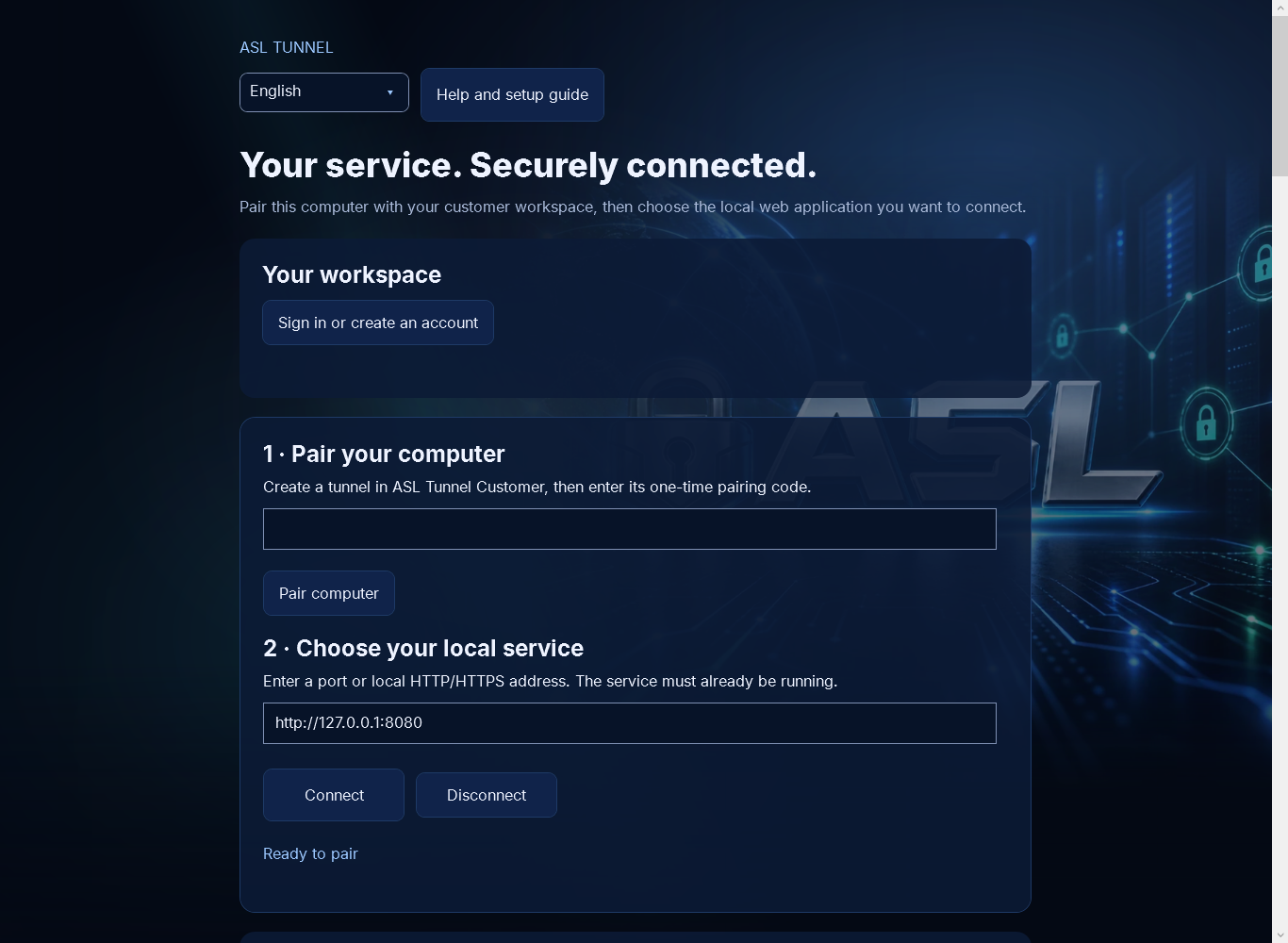
The launch screen shows ASL artwork before opening the workspace. It does not indicate that a tunnel is connected. The main screen contains the language selector, Help and setup guide, Your workspace, pairing controls and the local service address. Read the connection status below Connect and Disconnect to know whether this computer is currently connected.
5. Choose your language
Use Language near the top of the window. Languages are shown in their own names. Changing it updates the app and its help, and saves your choice for this Windows user. First launch checks an explicit --lang option or ASL_TUNNEL_LANGUAGE setting, then the saved installer/app choice, then the Windows display language, and finally English. Technical addresses, route names and credentials are never translated.
6. Arabic and readable text
Arabic uses a right-to-left layout. ASL artwork keeps its original orientation. Addresses, codes and other technical values must be copied exactly even when surrounded by Arabic text. Windows font fallback supports Chinese, Korean and Hindi characters. If text looks clipped, enlarge the window or scroll the page. The language selector can always return the interface to English.
7. Sign in safely
Select Sign in or create an account. Your normal browser opens the shared ASL identity service. Complete sign-in there and return to the app after the browser says the response was received. The app does not ask you to paste a staff administrator token, an SSH key or your account password into a tunnel field. Do not share your browser's sign-in link.
8. Create a customer account
Choose the registration option on the ASL sign-in page, enter your own details, and follow the email-verification instructions. Account creation and email verification happen through the shared ASL identity service. A workspace is a separate next step. Registering does not buy an app, activate a paid service plan, or prove that a tunnel is running.
9. Verify your email
Open the verification message for the account you just created and follow its instructions. If it has not arrived, check spam and confirm the address you entered. Do not repeatedly create accounts or request many links. Return to sign-in after verification. Workspace creation requires a verified email; a signed-in account whose address is unverified cannot use self-service onboarding.
10. Forgotten passwords
Use the recovery option on the shared ASL sign-in page. Password recovery is separate from a tunnel pairing code and from a private viewer link. Request a new recovery link if the previous one expired, and use the latest message. If recovery loops back without letting you reset your password, contact support with the time and visible error, never the recovery link or password.
11. Create your workspace
After signing in, an account without an available workspace can enter a Workspace name and select Create workspace. Use a name of 1 to 120 characters. The verified account becomes its owner and the service applies its trial rules. You cannot select a paid plan or assign ownership to a different person by changing the request. Existing trial restrictions still apply.
12. Switch workspaces
Use the Workspace selector when your account belongs to more than one organization. Your tunnel list is loaded for the selected workspace. Check the workspace name before creating, disabling, rotating or revoking a tunnel. Changing the management selection does not itself disconnect a tunnel that is already running on this computer. Disconnect explicitly before pairing a different tunnel.
13. Owners, operators and viewers
Owners and operators normally manage routes; viewers can inspect them. The server checks your current membership and permissions for each request. A hidden or visible button is not an authorization grant. If an action is refused, verify the selected workspace and ask its owner to review your access. Never use another person's credentials to work around a refusal.
14. Create your first tunnel
Enter a New tunnel label and select Create tunnel and pair this computer. Use a short description that identifies your service. The server assigns the route under the workspace's policy and returns a one-time pairing code and private viewer link. Windows attempts to claim the code for this computer. Creation does not start the local service or automatically connect the tunnel.
15. Labels and route names
A label is the human-readable description shown in the tunnel list. The route name is the technical identifier used by ASL addresses and management requests. Route names are not translated and must be used exactly. Trial workspaces may receive automatically assigned names. Do not put passwords, customer records or other private information into labels.
16. Pair from Android or the website
Create a tunnel in ASL Tunnel Customer on Android or in the customer website. Enter its one-time pairing code in Pairing code on Windows, then select Pair computer. Use the code within its displayed validity period. The Windows computer claims the agent credential directly; you do not need to manually provision it on the server. Save the separate private viewer link securely.
17. Pairing codes expire
Pairing codes are short-lived and can be used once. The setup screen currently tells you to use a new code within 10 minutes. A consumed or expired code cannot pair another computer. Select Pair another device in the customer manager to replace the agent access and receive a new code. This may disconnect the previously paired computer; it is not a way to clone its credential.
18. Choose the local service
Enter a port such as 8080 or a complete HTTP/HTTPS address such as http://127.0.0.1:8080. The service must already be listening there. A port alone means the loopback address on this Windows computer. If you intentionally enter another reachable computer's address, ASL Tunnel forwards to that address instead. You are responsible for having permission to expose the selected service.
19. Local HTTPS certificates
HTTPS services must present a certificate trusted by Windows for the chosen host. The app does not disable certificate validation to make an untrusted service work. Use a valid certificate or a deliberately chosen local HTTP service when appropriate for your environment. Never bypass a certificate warning by giving a stranger your tunnel credential.
20. Connect
After pairing, choose the Local service address and select Connect. Wait for Tunnel connected before testing the private viewer link. Connecting starts the native tunnel engine inside this app. It does not launch your local web application. If the local service is stopped or the address is wrong, the tunnel connection may be online while requests to the service fail.
21. Disconnect and close
Select Disconnect to stop this computer's agent. Closing the Windows app also stops its tunnel and asks for confirmation while an agent is running. Keep both the Windows app and your local service running for access to continue. Disconnecting does not revoke the route or permanently remove its credential; you can reconnect unless access has expired, been disabled or been revoked.
22. Manage several routes
The Windows app can run one paired web-service tunnel and one separately paired SSH tunnel at the same time. Their Connect/Disconnect and Start SSH tunnel/Stop SSH tunnel controls are independent. The workspace can contain additional routes within its limits, but selecting a list row does not move or start an agent. Stop running tunnels before replacing a pairing. On Linux, use a distinct saved profile and user service for each publishing process. Never run the same publishing credential on two computers: an additional agent can replace the existing connection. Use separate routes for separate computers or services.
23. Use the private viewer link
The private viewer link includes access information for the service. Anyone who has it may be able to access that service. Share it only with intended recipients through an appropriate private channel. The plain route address may not grant access by itself. Do not paste private viewer links into public posts, screenshots, logs or support messages.
24. What becomes reachable
The configured HTTP/HTTPS service becomes reachable through its ASL route to authorized viewers. The tunnel does not automatically publish every port, your desktop or all your files. However, whatever the chosen web service exposes is reachable through that service. Review its own authentication, administrative pages and data before connecting. A private viewer link does not replace the application's own user permissions.
25. WebSocket applications
The agent supports WebSocket connections used by live web applications. The local service must accept the requested path and subprotocol. If an ordinary page loads but its live updates fail, check the application's WebSocket URL, its expected public path and its server logs without exposing credentials. A tunnel cannot automatically repair an application's hard-coded localhost addresses.
26. Refresh the tunnel list
Select Refresh to retrieve the selected workspace's current routes. The list is a management view, not proof that every local service is healthy. Refresh after an interrupted mutation before repeating it, because the server may have completed the change even when the response was lost. Avoid repeatedly clicking Create to solve a delayed response.
27. Enable or disable a tunnel
Select a route and then Enable or Disable. Review the confirmation before applying the change. Disabling may interrupt existing connections and prevents the route from serving traffic under the service's rules. Enabling does not restart a stopped Windows app or local service. Return to the paired computer and select Connect when needed.
28. Replace a device pairing
Select the route and Pair this computer on Windows, or Pair another device in the Android customer app. Confirm the replacement. Rotation replaces agent access and may disconnect the old agent. A new pairing code is returned for the intended computer. Save any newly returned private viewer link; do not assume an older link remains valid after credentials change.
29. Revoke access
Select a route and Revoke when its access should end. Confirm only after checking the workspace and route. Revocation invalidates access and may disconnect the agent. It is different from pausing this computer with Disconnect. If you suspect a credential was disclosed, revoke or replace the relevant route access and review the application's own access logs.
30. Route expiry and trial limits
A route's agent access has an expiry determined by the service. The setup request currently asks for 30 days, subject to the workspace's policy. Expired access cannot be repaired by repeatedly reconnecting. Review the route in the customer app and obtain new pairing access when permitted. Trial quotas and prior-use restrictions are enforced on the server; changing the app does not bypass them.
31. Connection status messages
Connecting means the agent is attempting its connection. Tunnel connected means the gateway accepted it. Connection lost. Reconnecting means the app is retrying after a transient failure. Tunnel disconnected means you stopped the connection. Access expired or revoked means new access may be required. None of these messages guarantees that the local web service itself is responding correctly.
32. Internet interruptions and sleep
The agent sends keepalive traffic and retries transient gateway disconnections with increasing delays. Sleep, network changes and a stopped local service can interrupt visitors. Keep the computer awake when continuous access is required. After waking it, check the app's status and test the service. The app stops retrying when the gateway reports terminal credential rejection.
33. Pairing failed or could not be saved
For Pairing failed, check the code, its expiry and whether it was already used. For Pairing could not be saved, Windows may have claimed the code before local storage failed. Generate replacement pairing access instead of assuming the same code will work again. The app protects its saved credential for the current Windows user. Do not move profile.bin to another user as a workaround.
34. Sign-in errors
If sign-in could not be completed, retry from Sign in or create an account and finish the browser flow within its time limit. A different process using the local callback port can prevent sign-in from starting. If your sign-in expired, sign in again; do not paste a token into the interface. Contact support if the browser returns a persistent identity-service error.
35. Requests whose result is uncertain
If the request could not be confirmed, refresh the route list before repeating a change. A connection failure does not prove the server did nothing. Check for an existing route after a create request, and verify its state after enable, disable, rotation or revocation. Keep the exact visible message and approximate time for support, but omit credentials and private links.
36. The tunnel connects but the page fails
First open the local service directly on the Windows computer. Confirm its port, scheme and path. Then test the private viewer link. Check the local service's certificate, authentication and redirect configuration. The agent forwards redirects without following them itself. A redirect to localhost or a private network name may not work in a remote visitor's browser and must be corrected in your application.
37. App purchases and service billing
Installing an ASL Tunnel app and paying for the hosted tunnel service are separate. The hosted service is a paid plan for the workspace; section 78 lists the trial, plans and prices. The workspace owner buys, changes or cancels a plan in the Billing section of the customer portal at tunnel.autosecurelogin.com/customer/, and Stripe handles the checkout and card details. Android's Billing view shows the workspace's plan and status but does not sell plans. An installed app is not proof of payment. Contact support@autosecurelogin.com about billing questions.
38. Android alerts and billing views
ASL Tunnel Customer for Android shows route status, existing alert subscriptions and billing information for your selected workspace. It manages routes but does not run a device VPN or expose a service on the phone. The staff ASL Tunnel Android app is a separate privileged administrator tool; customers should use the customer app and their own ASL account.
39. Data and credentials
Requests and responses travel between the public ASL gateway and the selected local service through the tunnel connection. The agent credential is stored using Windows protection for the current user. The app never places it in a child-process command line because the native engine runs in this process. Review ASL's published privacy policy and your local application's data-handling rules before exposing sensitive information.
40. Safe troubleshooting evidence
Support may need your app version, Windows version, approximate failure time, selected action and visible error. Never send passwords, authenticator codes, agent tokens, pairing codes, recovery links or private viewer links. Redact screenshots before sharing them. Use fictitious data for demonstrations and tests. Route labels can also contain private information, so review them before capturing a screen.
41. Reduce background motion
Select Reduce background motion to stop the animated background while keeping the ASL visual design. This setting affects the presentation, not connection security or service performance. Language selection and keyboard navigation remain available. If you use Windows text scaling, enlarge the app and use its scroll bars to reach controls below the current view.
42. Keyboard and accessibility
Use Tab and Shift+Tab to move through controls, Enter or Space to activate focused buttons, and the arrow keys to choose list entries. Controls have accessible names, and status messages are exposed to accessibility tools. Use the language selector for translated control labels. Keep technical codes and addresses unchanged when entering them, regardless of the interface language.
43. Search this help
Open Help and setup guide from the main window. Type a term in Search the help guide to filter topics by title and content, then choose a topic from the contents list. Clear the search to show every topic again. The guide opens in the current app language and updates when you change it. Search for the exact button name or the main words from an error message.
44. Updates
Use Microsoft Store to obtain the published ASL Tunnel update. Save your work and disconnect before restarting an app that is forwarding active traffic. Updating the Windows app does not necessarily change the hosted service or Android apps at the same time. Read the release notes and verify your existing pairing and local service address after the update.
45. Uninstall and remove access
Disconnect, then uninstall ASL Tunnel through Windows Settings or Microsoft Store. Uninstalling this app does not close your ASL workspace, cancel external billing or guarantee that a server credential has been revoked. Use the customer manager to revoke routes you no longer want. Local profile data and the language preference are distinct from server data; contact support if you need help removing them safely.
46. Delete a Tunnel account
ASL Tunnel Customer on Android provides Account deletion options and an in-app confirmation flow. Review its consequences carefully: eligible owned organizations can close and credentials can be revoked. Organizations with other active members may require ownership changes first. Deleting a Tunnel profile is separate from deleting the shared ASL sign-in identity or canceling external billing. The Windows app does not silently delete an account when it is uninstalled.
47. FAQ and glossary
Does Android run the tunnel? No. It manages your workspace; Windows or Linux runs the publishing agent. Does Windows need Node? No: the MSIX contains a native .NET engine and native SSH client commands. Does the Linux source agent need a runtime? Yes: the current command-line distribution requires Node 26 or newer. Must the target stay on? Yes, and the local service must be running. Workspace means the organization owning routes. Route means the named service address. Agent means the publishing process. Gateway means the hosted ASL endpoint. An agent pairing code enrolls a publisher; an SSH client pairing code stores a separate access key on a connecting computer. Neither replaces your SSH user key. A host key identifies the destination server.
48. What's new and support
This release adds native Windows HTTP and SSH transport, Linux SSH publishing and reusable profiles, self-service workspace and route setup, separate SSH client pairing, ASL artwork, a language selector and searchable help. The Android customer app manages the same routes; the staff app remains a separate administrative tool. Availability depends on the installed app version and hosted service deployment. Translations are machine-made and have not been reviewed by native speakers. ASL LLC, doing business as Auto Secure Login, owns this software. Contact support@autosecurelogin.com with your app version, platform, approximate failure time and visible error. Never include credentials, private keys, pairing codes, recovery links or private viewer links.
49. SSH: understand the two computers
The publishing computer is the machine you want to reach. It runs an existing SSH server and an ASL SSH agent. The connecting computer is the machine you work from. It runs OpenSSH and ASL’s SSH client helper. One computer may serve both roles, but their setup and credentials remain separate. The connection is: your OpenSSH client → ASL client helper → encrypted ASL gateway connection → publishing agent → 127.0.0.1 on the publishing computer → its SSH server. The SSH protocol remains encrypted between your OpenSSH client and the destination SSH server. ASL does not replace SSH user authentication or host-key verification. The gateway can observe route, connection timing and byte counts, but should not log the SSH payload or credentials. Create a private SSH route for each destination. A web route cannot be converted into an SSH route by changing its local port. Connecting to an SSH route in a web browser does not open a terminal.
50. SSH: checklist before setup
On the destination, confirm that you own or administer the computer, an SSH server is installed, and you can already authenticate with your SSH user key. Keep an existing local or LAN connection open while testing remote access. Confirm the server listens on the intended loopback port, normally 22. Do not open a new router port or replace a working LAN configuration just to use ASL. On the connecting computer, confirm OpenSSH is installed and that the correct private key belongs to your current account. Record the destination’s host-key fingerprint through a trusted local session. Create the ASL route using an owner or operator account, and keep the two pairing codes separate. First test with an unprivileged SSH user and a harmless command such as hostname. Only use unattended startup after a manual connection and disconnection work. A tunnel can be online while SSH login still fails because the SSH username, authorized key or host fingerprint is wrong.
51. Windows destination: prepare OpenSSH Server
Windows OpenSSH Client and OpenSSH Server are separate optional components. The client alone does not make this computer reachable. Install the Server component through Windows Optional Features or your organization’s approved deployment process. Installing or changing a system service may require an administrator; ASL Tunnel does not install it silently or weaken its settings. Configure the sshd service for your approved users and public keys. The standard server configuration is under C:/ProgramData/ssh/sshd_config. Review PasswordAuthentication, KbdInteractiveAuthentication, PubkeyAuthentication and any Match blocks. Require public-key authentication and disable password and keyboard-interactive authentication for the users exposed through this route. Validate changes with sshd -t before restarting the SSH service. Keep your existing LAN session available until the new configuration is confirmed. Select Check SSH server in ASL Tunnel. The app checks the default effective settings and whether the selected loopback port is reachable. This is a basic check, not a complete audit of every Match rule or user permission. ASL never adds a firewall opening, edits authorized_keys, or changes the SSH server for you.
52. Windows destination: pair and publish SSH
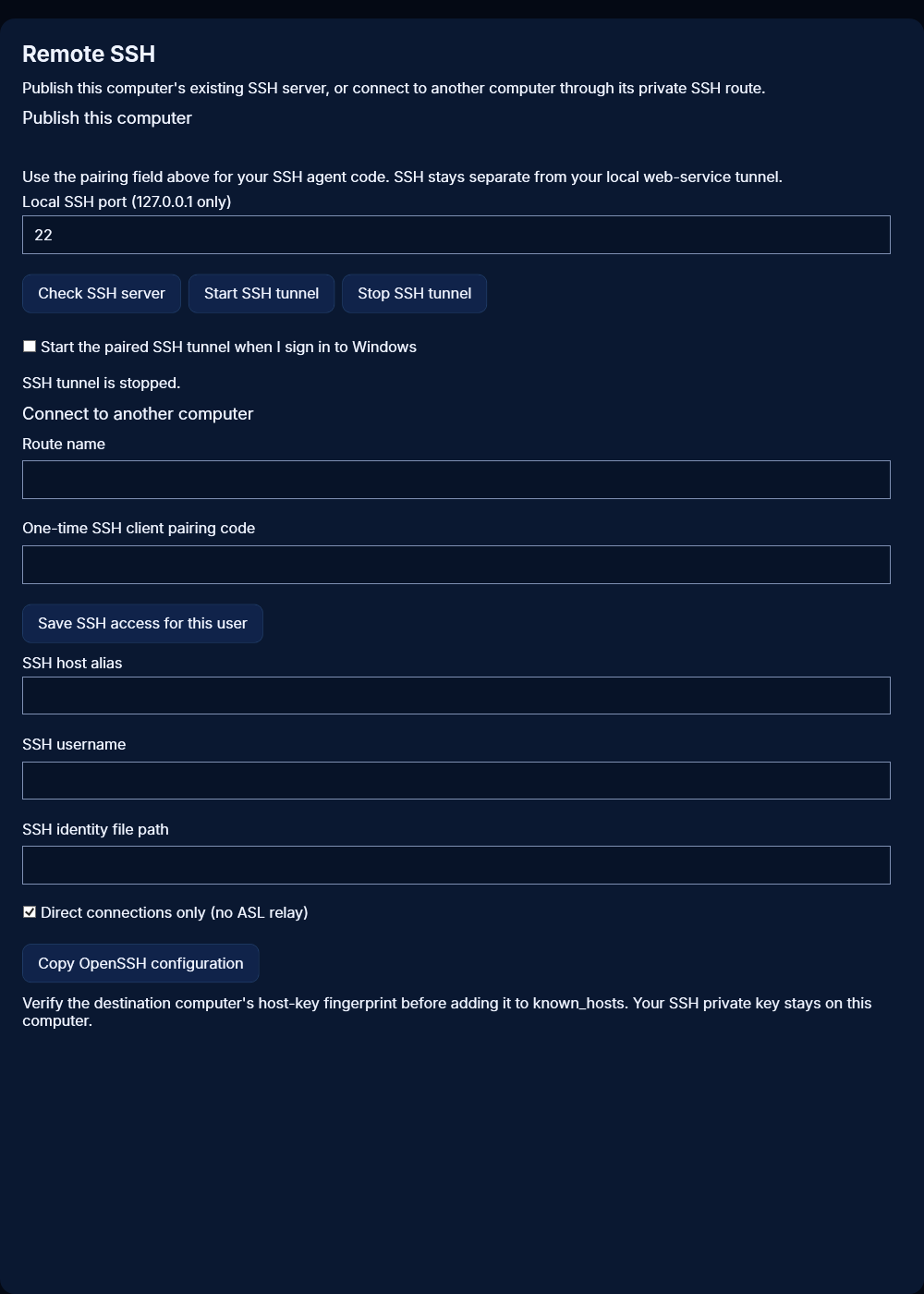
1. Sign in to ASL Tunnel and choose your workspace. Enter a New tunnel label that identifies this computer, then select Create private SSH tunnel. The app creates an SSH route and saves its publishing pairing separately from your web-service pairing. 2. Save the separate one-time SSH client code shown after creation for the computer you will connect from. It expires after 10 minutes. Do not put it in a screenshot or support ticket. 3. In Remote SSH, enter the Local SSH port. The host is fixed to 127.0.0.1 and cannot be changed. Select Check SSH server, resolve any key-only configuration problem, and then select Start SSH tunnel. 4. Wait for Private SSH tunnel connected. Keep the app and SSH server running. Select Stop SSH tunnel to stop only SSH; your independent HTTP tunnel can remain running. If you created the route on the website or another manager, put its agent pairing code in the main pairing field and select Pair computer. The app recognizes the SSH route type. Use Remote SSH to start it.
53. Windows: start SSH when you sign in
After manual SSH publishing works, select Start the paired SSH tunnel when I sign in to Windows. This option requires the installed MSIX and a saved SSH pairing. Windows can ask you to allow startup or can block it through Startup Apps settings or organization policy. ASL reports whether Windows enabled the task; selecting the checkbox does not override a policy. At sign-in, the app loads the protected SSH profile, checks the local SSH server and attempts to reconnect. This is a user-session application, not a system service: it does not promise access before sign-in, after logout, during sleep, or while the computer is off. Keep the window running. Closing it stops its active tunnels. To stop future automatic startup, clear the option or disable ASL Tunnel SSH in Windows Startup Apps. To stop the currently running connection, also select Stop SSH tunnel. If automatic startup fails, open the app and inspect Remote SSH status. Expired or revoked route credentials must be paired again.
54. Windows connecting computer: save access
Install ASL Tunnel and OpenSSH Client on the computer you will connect from. In Remote SSH → Connect to another computer, enter the destination’s Route name and its separate One-time SSH client pairing code. Select Save SSH access for this user. This is not the publishing agent code, and it does not install your SSH private key. The route key is saved under your current Windows account with an owner-only access list. A different Windows user must obtain authorized access separately. Do not copy the key folder into a shared drive or make its permissions broad to solve an error. Enter an SSH host alias, the destination SSH username, and your existing SSH identity file path. Select Copy OpenSSH configuration and add the resulting stanza to your user’s .ssh/config file without replacing existing entries. Choose a unique Host alias. ASL copies configuration text; it does not silently rewrite the file. The installed execution alias asl-tunnel.exe handles ProxyCommand. If Windows cannot find it, check App execution aliases and confirm the MSIX is installed for this user. An unpacked development build does not register that alias.
55. OpenSSH configuration and first connection
Use a distinct Host entry for each destination. The generated configuration sets HostName to the route name, User to the SSH account, IdentityFile to your private-key path, IdentitiesOnly yes, StrictHostKeyChecking yes, and ProxyCommand to the ASL helper. Keep these technical directives in English even when the app is translated. Before the first connection, add the trusted destination host key to known_hosts under the same name OpenSSH uses for the connection. Obtain the public host key and fingerprint directly from the destination through a trusted local or existing LAN session. Verify the fingerprint before trusting the key. Do not disable host-key checking to make a first connection succeed. Then run ssh followed by your chosen alias. A successful route-key check only gets you to the destination SSH server. That server still checks your username, private-key proof and account permissions. Start with hostname or another harmless read-only command. Leave an existing LAN SSH entry intact so you retain an independent recovery route.
56. Verify the destination host key
An SSH host key identifies the destination machine. It is different from your user’s private key, an ASL agent token, and an ASL route key. On the destination, use ssh-keygen -lf with the appropriate public host-key file, commonly ssh_host_ed25519_key.pub. Windows commonly keeps this under C:/ProgramData/ssh; Linux commonly keeps it under /etc/ssh. Only the public .pub file is needed to inspect a fingerprint. Compare the fingerprint through a trusted channel with the value presented or enrolled on the connecting computer. A route name alone does not establish that the server is the machine you intended. Never send the server’s private host key to another computer or to support. If OpenSSH reports that the host key changed, stop. Investigate whether the server was reinstalled, the route now points to another computer, or the connection is being intercepted. Remove or replace an old known_hosts entry only after independently verifying the new key. Do not automatically accept changed host keys.
57. The four SSH credentials and where they belong
The agent pairing code enrolls the publishing computer and is exchanged once for a publishing token. The SSH client pairing code is a different short-lived code that stores the route-access key on the connecting computer. Both codes expire after 10 minutes and are not interchangeable. The SSH user private key proves your identity to the destination SSH server. It stays on the connecting computer; install only its public key in the destination account’s authorized_keys according to your SSH administration policy. The destination host key proves the server’s identity to your client. ASL sends the route key in the X-ASL-Tunnel-Key header over the encrypted WebSocket connection. Never place it in a URL. The ASL route key is not enough to log in without the SSH user credential, and the SSH private key is not enough to bypass ASL route access. Rotation or revocation of one layer does not automatically rotate every other layer.
58. SSH pairing errors and expired codes
If the app says SSH client pairing failed, first check that you used the client code rather than the agent code, entered the exact destination route name, and are within the 10-minute validity window. A successful exchange consumes the code. Repeating a consumed code is expected to fail. If saving failed after a successful exchange, the code may already be consumed. Obtain fresh access through your workspace owner. Rotating the route issues fresh publishing credentials and client access, and invalidates earlier access; coordinate the change because it can disconnect the destination and other clients. Repeated failed pairing attempts are rate-limited. Wait before retrying instead of rapidly submitting guesses. Do not send a pairing code to support. Report the time, the visible message, the route type and whether the failure happened during publishing or client pairing. Never paste a long-lived token into a short-code field.
59. SSH error 401: route key rejected
A 401 means ASL did not accept the route-access key. This happens before the destination SSH account authenticates. Confirm that the connecting computer saved access for the correct route under the same OS user that runs OpenSSH. A key stored by another user is not automatically available. If the route was rotated, obtain a new client pairing code and save it again. If a key file has broad permissions, restore access by saving the route key through ASL; do not make the file public. The helper refuses unsafe key files. Requests with a key in the URL, query parameters, browser cookies or a normal browser login are not accepted for SSH. Do not change the SSH server’s password settings to fix 401. The failure is at the ASL route-access layer. Once it is fixed, SSH may still separately report a username, public-key or host-key error.
60. SSH error 503: destination unavailable
A 503 normally means the route is unknown or currently unavailable to the gateway. Check the route spelling, workspace, enabled state and expiration. On the publishing computer, confirm the ASL SSH agent is connected, the device is awake, and its network permits outbound secure WebSockets. A disabled, revoked or suspended route cannot be restored just by restarting the client. If ASL is connected but the local SSH server is down, the stream can close after connection or report a local SSH error instead. Check the selected loopback port and server service status. Test a local SSH login before retrying the remote route. Use Refresh once to obtain current management state. Avoid repeated clicks or starting many copies of the agent. Keep a working LAN connection available while diagnosing remote access. Report timestamps and status text, not tokens, if you need support.
61. SSH session limits and timeout behavior
The gateway allows at most four concurrent SSH sessions per route, and a route’s configured limit may be lower. Each independent OpenSSH connection consumes a session. An SFTP client, SCP transfer, editor or background connection can keep one open even when no terminal is visible. A 429 means the route has reached its allowed active connection count. Close connections you no longer need and retry. Do not work around the limit by sharing publishing credentials or creating uncontrolled duplicate routes. Administrators can choose bounded idle and absolute timeouts. Defaults are five minutes without SSH-stream bytes and eight hours for a session, but a deployment may use other limits. OpenSSH keepalive traffic can prevent an otherwise idle connection from reaching the byte-idle timeout; it does not defeat an absolute timeout. Long jobs should be designed to survive network loss using the destination’s approved job or session manager. Do not assume a tunnel guarantees an uninterrupted interactive session.
62. SSH permission denied or wrong username
If you reach the SSH server but see Permission denied (publickey), the ASL tunnel is not the component rejecting your user login. Confirm the SSH username is the account on the destination, not your ASL email unless the destination actually uses that username. Confirm IdentityFile points to the correct private key and its public counterpart is authorized for that account. Check the destination account’s home directory and authorized_keys ownership and permissions. Windows administrator accounts can use a separate administrators_authorized_keys location depending on sshd_config. Review the effective configuration and Match rules rather than copying a generic path blindly. Linux may reject keys when the home or .ssh directory is writable by other users. Use your established local administrative access to correct the account setup. Do not enable password login or paste a private key into authorized_keys. Share only sanitized error text with support; verbose SSH output can contain usernames, hostnames and file paths that you should review before sharing.
63. SSH configuration and execution-alias errors
If ssh reports Bad configuration option or a parsing error, check for smart quotes, wrapped command lines, translated directives or a stanza pasted into the wrong file. Technical OpenSSH keywords remain English. Identity paths containing spaces must remain quoted. Keep each generated directive on its own line. If ProxyCommand cannot find asl-tunnel.exe on Windows, confirm App execution aliases enables the installed ASL Tunnel alias for the current user. If the Linux shell cannot find asl-tunnel, confirm the installed command is on PATH and uses the supported Node runtime. Do not substitute the staff Android app or a web URL for the client helper. Run the generated ssh-config command again with a simple unique alias and correct username. Review the printed stanza before adding it to an existing configuration. The helper’s standard output is reserved for SSH bytes during ssh-connect; banners or debug print statements inserted into the command will corrupt the SSH session.
64. SFTP, SCP and editor connections
After a normal SSH command succeeds using your configured alias, OpenSSH-based SFTP, SCP and remote-development tools can use the same SSH configuration when they support ProxyCommand. The destination SSH server decides whether file transfer, shells and port forwarding are permitted. ASL does not grant extra filesystem permissions. Test a small non-sensitive file first, verify its content or checksum at the destination, and then test the workflow you intend to use. Large transfers consume gateway traffic and can be interrupted by idle, absolute-session, route-expiration or connection limits. Keep important transfers resumable where your tool supports that. Third-party tools that ignore your OpenSSH config or do not implement ProxyCommand may not work with this route. Do not place the ASL key into the tool’s SSH password field. Android’s ASL customer app manages routes; it does not become an SFTP client or SSH terminal because the route exists.
65. Stop, disable, rotate and revoke SSH access
Stop SSH tunnel stops the local publishing agent. The route and credentials remain available for a later authorized restart. Disable is a server-side pause: it blocks the route even if the agent keeps trying to reconnect. Enable restores an otherwise valid disabled route. Rotate replaces route credentials and disconnects access using the old credentials. Re-pair the publishing computer and every connecting computer that needs the new route key. Keep the separate agent and client codes straight. A new client code is temporary; the saved route key remains usable only while the corresponding route credential remains valid. Revoke is the stronger removal action for a credential you no longer trust or need. Do not treat deleting the local key file or uninstalling the app as equivalent to server-side revocation. If a private key for the SSH user was exposed, also remove its public key from the destination and replace that user key. ASL credential rotation does not repair a compromised SSH user key.
66. SSH privacy, logs and safe evidence
SSH route keys, publishing tokens, private keys and pairing codes must not appear in screenshots, command histories, URLs, ordinary backups or support tickets. Use the client pairing flow or redirected stdin for route keys. Do not put a raw key after ssh-connect on the command line. ASL records operational metadata such as route, connection result, duration and byte counts. It should not record SSH payloads or user private keys. The destination SSH server and programs you run can have their own logs and retention policies. A tunnel does not prevent the remote machine from recording activity it is configured to record. For troubleshooting, capture the app version, OS, approximate time, action, route type and a redacted error. Review route labels and screenshots for identifying information. Never include a recovery link or MFA code. If you suspect a credential leaked, revoke or rotate the relevant credential and investigate access rather than just deleting the screenshot.
67. Linux: installation and prerequisites
The Linux implementation runs the same ASL agent and SSH client helper from the tunnel distribution. The current source command-line package requires Node 26 or newer and its declared dependencies. Install the official ASL distribution using its supplied release instructions; verify the release checksum before running it. Do not use an unrelated package with a similar name. The Windows MSIX does not require Node and cannot be installed on Linux. For SSH publishing, install and configure your distribution’s OpenSSH Server through its package manager or administrator. For connecting, install OpenSSH Client. Linux distribution names and service names vary; use your distribution’s documentation instead of assuming every system calls the service sshd. Run the agent under a dedicated ordinary user where practical. Do not run the entire ASL agent as root just to connect to local port 22; connecting to that port does not require root. System-level SSH installation and configuration may require administrative access, while ASL user profiles and services remain per-user.
68. Linux destination: configure and verify SSH
Confirm the SSH server is listening locally on the chosen port and that the intended account can log in using its SSH public key. Review /etc/ssh/sshd_config and any included configuration files. Require public-key authentication and disable password and keyboard-interactive authentication for exposed accounts. Check Match blocks and any distribution-managed fragments that can override defaults. Validate the configuration with sshd -t using the required administrative access before reloading or restarting your distribution’s SSH service. Use sshd -T, and where necessary its connection-specific options, to inspect effective settings. Test a local connection to 127.0.0.1 with the correct username and key. Preserve a working LAN or console session until verification is complete. ASL only connects to the publishing machine’s literal 127.0.0.1 address. It does not use localhost, IPv6 loopback, a LAN IP or a host supplied by a remote request. If the SSH server listens only on another address, adjust the SSH service through your normal administrative process or choose an approved loopback listener; ASL will not silently redirect to another host.
69. Linux destination: pair, save and run
Create a private SSH route in your ASL workspace. On the destination Linux computer, run: asl-tunnel ssh --pair-code <agent-code> --save-profile destination-ssh Replace <agent-code> privately with the one-time publishing code. Add --ssh-port with your local port if it differs from 22. The agent exchanges the code once and saves a reusable owner-only profile. Do not place a long-lived token in shell history. The profile name is a local name; it need not be the route name. Wait for the online status, then test from your connecting computer. Press Ctrl+C to stop this foreground agent. On later starts, use: asl-tunnel --profile destination-ssh Do not reuse the consumed pairing code. A saved profile preserves the port and gateway as well as the credential. If credentials expire or are rotated, stop the running process, obtain a new agent code, and save a replacement profile. Keep HTTP and SSH in separate profiles and processes when running both.
70. Linux: install a user service
First pair and save a Linux profile, then prove it works in the foreground. Stop the foreground process before installing its service, so two processes do not compete for one publishing credential. Run: asl-tunnel service install destination-ssh The command creates a service for the current user, reloads that user’s systemd manager, and enables and starts the service. Its command references the private profile; it does not put the token or pairing code in the service file. The service restarts after a failure. It requires a functioning systemd user manager and stable locations for the installed ASL command and Node runtime. Use asl-tunnel service status destination-ssh to see LoadState, ActiveState and SubState without dumping private profile contents. The installer refuses to overwrite an existing service file. If installation partly succeeds but starting fails, inspect the named user service and correct the underlying runtime, profile or network issue before retrying. A non-systemd distribution needs its own reviewed supervisor setup.
71. Linux: logout, startup and unattended access
A systemd user service belongs to a user session. Whether it continues after logout depends on that machine’s user-manager and lingering configuration. Installing the ASL user service does not silently enable lingering, create a root service, or promise access before the user manager starts. If you need access after logout or after reboot without an interactive sign-in, have the machine administrator review the user-service lifecycle and, where appropriate, enable lingering for the dedicated account. Evaluate local policy, disk encryption, networking and power management. Test the actual logout and reboot behavior before relying on it from outside the LAN. The destination must remain powered and connected. Sleep, hibernation, a network change or expired credentials can make it unavailable. Keep a separate recovery path such as console or existing LAN SSH. A reconnecting tunnel is not a replacement for recovery access when the host itself is offline.
72. Linux connecting computer: route key and config
Install the ASL command and OpenSSH Client. Obtain the destination route name and its separate SSH client pairing code. Run: asl-tunnel ssh-key add <route> --pair-code <client-code> This exchanges the short-lived code and saves the route key for the current Linux user. If you already received a raw route key through an approved secure channel, the alternative is asl-tunnel ssh-key add <route> with the key supplied through redirected stdin. Never put the raw key in command arguments or a URL. Generate a stanza with: asl-tunnel ssh-config <route> --host <alias> --user <ssh-user> --identity <private-key-file> Review the output and add it to ~/.ssh/config without overwriting other entries. Enroll the verified destination host key in known_hosts, then connect with ssh <alias>. The ASL helper retrieves the saved route key; OpenSSH separately uses your SSH private key. A successful connection from a different OS account does not prove this account has the required files or permissions.
73. Linux: private file locations and permissions
ASL route-access keys are stored under ~/.local/share/autosecurelogin/tunnel/keys with an owner-only directory (0700) and owner-only files (0600). Publishing profiles are under ~/.local/share/autosecurelogin/tunnel/profiles with the same ownership and permission requirements. These files contain access credentials. Do not copy them into source control, a shared folder, an ordinary support archive or a public backup. The app refuses symbolic-link key files and unsafe permissions. If a profile belongs to another user or is broadly readable, investigate why before correcting ownership and permissions. Do not use chmod 777 to make an access error disappear. Run the command as the account that owns the intended profile. OpenSSH separately checks your ~/.ssh directory, config, private-key and authorized_keys permissions. ASL’s route-key permissions do not fix those files automatically. Use your SSH implementation’s guidance for those paths. Revoking a server-side route remains necessary when credentials may have been exposed, even after you delete local files.
74. Linux: stop and remove a user service
To remove a service installed by ASL, run: asl-tunnel service remove destination-ssh The command disables and stops that user service, removes its unchanged generated service file, and reloads the user manager. It deliberately retains the private publishing profile so you can inspect, reuse or remove it separately. If the service file was edited after installation, the command refuses automatic removal; review it manually rather than deleting an unknown custom service. Removing the service is not server-side revocation. Revoke or disable the route in the workspace if it should no longer be reachable. Close any separate foreground agent using the same route. To remove the software itself, follow the distribution’s uninstall instructions and remove only the intended files after reviewing any other profiles using that installation. Do not delete your SSH user private keys, host keys or existing LAN configuration as part of ordinary ASL removal. Those are separate credentials and may still be required for other connections.
75. Using Windows and Linux together
You can publish from Windows and connect from Linux, publish from Linux and connect from Windows, or use either platform on both ends. Both sides use the same ASL route and gateway protocol. The destination always runs its own SSH server, and the connecting side always performs normal SSH user and host-key authentication. The Windows app saves publishing credentials with Windows user protection; Linux uses owner-only profile files. Do not copy a Windows protected profile to Linux or share one publishing token between machines. Pair each intended publisher through its own route. Client route keys are also per-user and should be provisioned separately for each authorized connecting account. The Android customer app can manage route state and display the codes returned by a credential rotation. It does not execute SSH commands. Your account and workspace can be shared across the customer website and apps, but local saved credentials and operating-system SSH configuration do not automatically synchronize.
76. Test from outside your local network
A successful LAN connection alone does not prove the ASL route works from elsewhere. After local server checks and pairing pass, use a connecting computer on an independent network, such as an authorized mobile hotspot. Use the ASL SSH alias, not the destination’s LAN address. Confirm hostname or another harmless command identifies the intended machine and verify the expected host-key fingerprint. Test disconnection, reconnection and the normal client you will use, such as your editor or SFTP client. Record only sanitized results: platform, version, approximate time and success or visible error. Do not record raw keys or codes. Verify that disabling the route blocks a new connection, then re-enable only if you intend continued access. Keep your existing LAN SSH configuration and recovery path throughout this test. ASL must not require replacing a working LAN entry. If the remote network blocks secure WebSockets, investigate that network’s policy instead of disabling certificate verification.
77. Update and recover SSH without losing LAN access
Before updating, save work in active remote sessions and keep an independent local or LAN administrative path available. Stop the relevant ASL process or user service, install the verified update, then restart and confirm its status. Do not overwrite the SSH server’s keys or configuration as part of an agent update. On Linux, a generated user service references the installed runtime and command path. If you relocate that installation, review or recreate the service so it points to the new stable location. On Windows, use the installed MSIX and its registered execution alias rather than a hard-coded versioned package path. Check Startup Apps after an update if automatic launch does not occur. If the new version fails, use the approved previous package and preserved profile only if the credential is still valid and compatible. A revoked credential must not be restored from an old backup. Report exact versions and sanitized symptoms. A local build, uploaded package, Store submission and public Store release are different stages.
78. Apps, hosted service and usage
The Windows app, Linux agent and Android customer manager work with the same ASL workspace. Installing software and paying for hosted tunnel service are different actions. A download purchase, if offered, must clearly state what service entitlement it includes; it must not be assumed to provide unlimited gateway traffic or lifetime hosting. Hosted ASL Tunnel is a paid service. A new workspace gets a 7-day trial with one route and 2 GB of relayed traffic. Standard costs US$14.99 a month or US$149.90 a year and includes 10 routes and 250 GB of relayed traffic a month. Enterprise costs US$49.99 a month or US$499.90 a year and includes 40 routes and 1 TB a month. Direct device-to-device connections are not counted. Buy or manage a plan in the Billing section of the customer portal. When a trial ends or a subscription is cancelled, your routes are kept but their traffic stops until a plan is active again. No feature starts a paid subscription merely because you pair a computer. SSH transfers use hosted gateway capacity as well as your own network. Large file copies and long-lived development sessions can use more traffic than interactive shell commands. Keep limits and renewal terms visible before purchase. Uninstalling an app does not by itself cancel an externally managed subscription.
79. SSH command reference and safe placeholders
Publishing: asl-tunnel ssh [--ssh-port <port>] --pair-code <agent-code>. On Linux add --save-profile <name> for reuse, then restart with asl-tunnel --profile <name>. Linux user-service commands are asl-tunnel service install <name>, service status <name>, and service remove <name>. Connecting: asl-tunnel ssh-key add <route> --pair-code <client-code> saves authorized route access. Alternatively supply a raw route key through stdin. asl-tunnel ssh-config <route> --host <alias> --user <user> --identity <file> prints an OpenSSH stanza. ssh-connect <route> is the binary ProxyCommand helper, not an interactive terminal by itself. The Windows execution alias is asl-tunnel.exe. Replace angle-bracket placeholders with your actual non-secret names and privately supplied codes. Do not type the angle brackets literally in a shell. Keep route names and commands unchanged by translation. Never put a raw route key in a query string, log, screenshot or command argument. Agent and client pairing codes are distinct.
80. Direct connections and relay fallback
When both devices run a compatible ASL Tunnel app and direct connections are enabled by the service, the apps try an encrypted device-to-device connection first. ASL Meet's existing discovery service helps the devices find each other. Discovery and authorization still contact ASL, but a successful direct connection sends application data between your devices. A normal web browser that opens a private viewer link also connects directly to the publishing device when it can, with nothing to install; public routes always use the relay. If setup fails, ASL selects the relay before sending application data. A relay connection is a normal fallback, not proof of a fault.
81. Open an application from another device
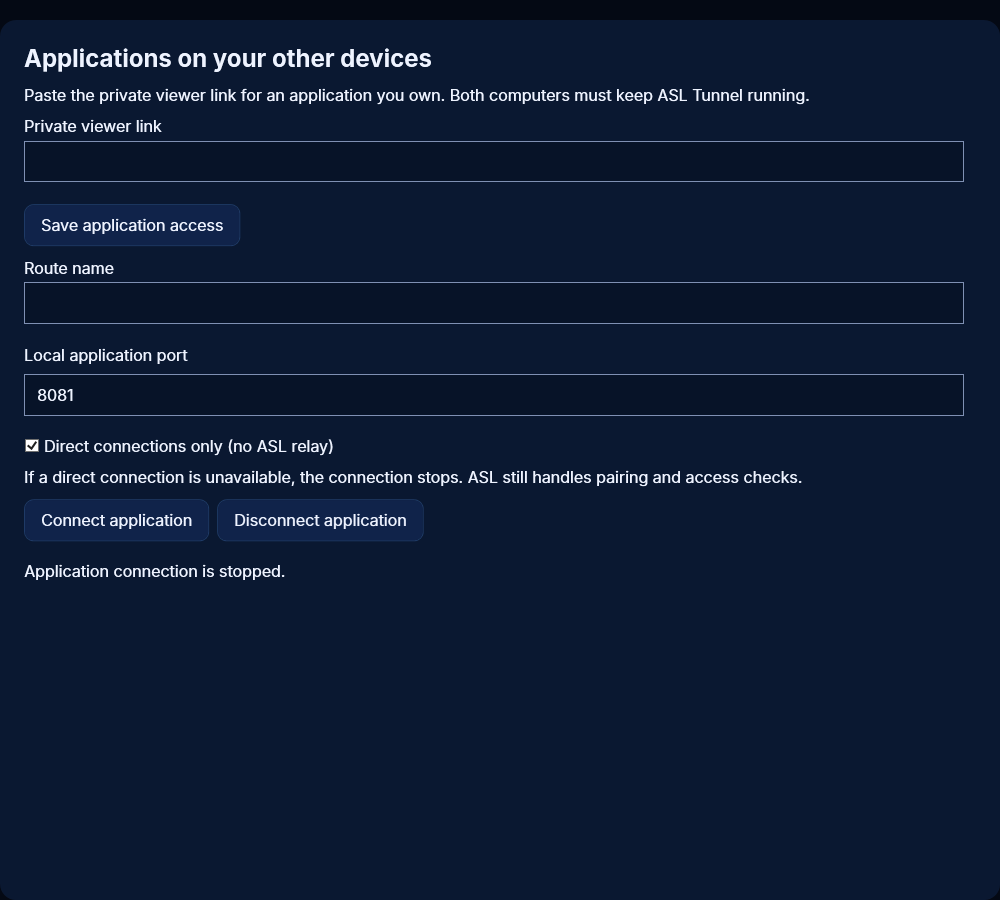
On the publishing computer, start the application and publish its private HTTP tunnel. Direct connections use the same local target as the tunnel: http or https, on this computer or another device on your network, with or without a path. The simplest way to open it from another device is the private viewer link in any web browser; the browser connects directly when it can. To use it as a local address instead, on the receiving Windows computer open Applications on your other devices, paste the private viewer link, and select Save application access. Choose an unused local port such as 8081 and select Connect application. Open the displayed local address in your browser or application. Keep both computers running. On Linux, save the key with asl-tunnel app-key add ROUTE through protected stdin, then run asl-tunnel app-connect ROUTE --port 8081. Never put a raw key in arguments. Disconnect application stops the local listener.
82. Direct connection limits, privacy and bandwidth
Networks that block UDP or prevent peer discovery require the relay. In a web browser, the application's own WebSockets use the relay, and scripts in the page cannot read the application's cookies; if a site does not work directly, add ?asl_transport=relay to its address to use the relay. Do not disable your firewall or SSH host-key checking to force direct mode. Your peer can learn your network address during discovery, which is why public routes always use the relay. Route revocation and authorization loss stop direct access; individual sessions have a one-hour limit. An interrupted stream must reconnect and is never silently replayed. Direct traffic still uses both devices' internet connections, but it is not counted against the plan's monthly relayed traffic.
92. Remote Android debugging: what it provides
Remote debugging lets an approved development computer use Android Debug Bridge with a phone through a temporary direct Tunnel connection. You can be away from that computer, including on a different network, if the two endpoints can establish direct connectivity. This is a development feature, not unattended remote control of any phone. The owner must prepare and authorize the Android device. Tunnel does not bypass the lock screen, turn on wireless debugging for you or accept Android's pairing prompts. USB-connected debugging through another host requires that host's own approved setup; it is not automatically provided by the phone app.
93. Prepare the Android phone
On the phone, use Android's Developer options to enable Wireless debugging on a network you trust. Accept only the network prompt you intended to approve. Open ASL Tunnel Customer, sign in to the correct workspace and open Remote Android debugging. Review the device and temporary access details, explicitly consent and start the session. Supply the current Android pairing and connection ports as requested. Keep the phone online and watch its active-session notification. Android versions and device manufacturers may organize these settings differently. Stop if the displayed device or network is unexpected.
94. Understand the two pairing steps
Tunnel pairing authorizes access to a private route. Android TLS pairing separately authorizes an ADB computer to debug the phone. Completing one does not complete the other. Android normally uses one temporary port for pairing and a different port for the continuing debugging connection. Use the matching routes for each step. Enter Android's fresh pairing code only into the trusted local pairing prompt; do not put it in a task description, command history, screenshot, support message or shared document. A previously paired development computer may use the connection route without repeating Android pairing, provided that Android still trusts it.
95. Connect from the Windows app
In Remote Android debugging, enter the private route name and its one-time Tunnel client code, then select Pair debugging route. Open debugging connection and copy its local endpoint for your approved ADB tool. The endpoint is restricted to this computer. A ready endpoint means the local listener exists; Android pairing, ADB connection and exact device-identity verification still have to succeed before a task can run. Do not select a different device merely because it appears in adb devices. Use the separate pairing route when Android requires first-time TLS pairing.
96. Use remote debugging with rBroker
rBroker uses Tunnel's direct-only local debugging connection for an explicitly authorized Android task. Configure the expected Android identity and connection route on the receiving development computer. The project must pass rBroker's local consent, named dispatcher permission, resource and artifact checks. A route name in a transferred project cannot authorize an arbitrary phone or executable. The supported typed Android operation builds the approved project and installs its approved APK; it does not grant a general remote shell. If identity verification or authorization fails, the task must stop. Store availability and your installed versions determine which integrated features are available.
97. Stop a debugging session
Use Stop in the Android app or its foreground notification to end the publishers immediately. On Windows, Stop debugging connection closes that local receiver; closing rBroker also ends receivers owned by its task. Stop debugging before switching accounts or handing the phone to someone else. Temporary route access expires independently, but do not rely on expiry when you can stop it now. When finished, turn off Android Wireless debugging if you no longer need it. Tunnel does not silently restart a stopped debugging session at boot.
98. Wi-Fi changes, sleep and expired ports
Android can change debugging ports when the network changes or wireless debugging restarts. Stop the old session, inspect the current Android values and create a fresh session instead of guessing ports. A sleeping phone, battery restriction, disconnected Wi-Fi or revoked pairing can also interrupt access. Check both devices' connection status and Android's own debugging screen. Do not turn off TLS pairing or expose an unauthenticated ADB listener to make reconnection easier. A new Tunnel route does not restore Android trust that the owner revoked.
99. When direct debugging cannot connect
Some hotel, mobile, corporate or carrier networks prevent a direct peer connection. Tunnel debugging has no ASL relay fallback, so a direct-connection failure stops the session. Try another owner-approved network or ask its administrator about the restrictions; do not open public ADB ports or disable network safeguards. ASL signaling must also be reachable for authorization and lease renewal. A successful test on one network does not guarantee connectivity from every country or network. An interrupted task must report its outcome before you choose whether to retry.
100. Debugging privacy and troubleshooting details
Debugging access can install applications and reveal device information. Approve only a computer and dispatcher you trust, verify the exact device and end sessions when finished. Keep Android codes, Tunnel pairing codes, route keys and account recovery links private. Support normally needs app versions, the selected feature, the time, the visible error and whether both devices were online. Do not send private keys, app data, credential files or full device logs unless a separately authorized support process requires specific sanitized information.
104. Pair with your phone using a QR code
Instead of typing a pairing code, you can pair a computer with your phone. In the Windows app, select Pair with my phone (QR code). On Linux, run asl-tunnel http PORT --qr (add --save-profile NAME to keep the pairing). Scan the code with your phone camera. If ASL Tunnel Customer for Android is installed, it opens there; otherwise the customer website opens. Sign in, check that the computer name is yours, then tap Connect computer. This creates a private web tunnel in the selected workspace, and the computer finishes pairing on its own; then choose the local service there and connect. Save the private viewer link shown on the phone. A QR code works once and expires after 10 minutes; after Cancel or expiry, show a new one. Only workspace owners and operators can connect a computer. Scan only codes shown on your own computers, because connecting adds that computer to your workspace.
105. Your public IP address
The Windows app shows Your public IP address under the connection status, and the Linux agent prints it when the tunnel comes online; asl-tunnel ip prints it at any time. It is the address ASL's server sees for this computer, usually your router's internet address, so it can differ from the computer's local address and can change when your network changes. Viewers do not need it: the tunnel works without opening ports. During a direct connection, the other device can learn this address.